
Connect Google Search Console to ChatGPT
You need a Search Console property you own, ChatGPT with developer mode, and a free CalmSEO account. Setup takes about five minutes. After that you can ask ChatGPT about your clicks, impressions, rankings, and pages in plain English.
What you need
- A Google Search Console property you have access to. Owner, full, or restricted permission all work. ChatGPT can only see properties the connected Google account can see.
- ChatGPT with developer mode. ChatGPT adds remote MCP servers as apps through developer mode. If the Developer mode toggle is missing, your plan or workspace may not have access yet. Check OpenAI's developer mode guide for current availability.
- A free CalmSEO account. CalmSEO is the SEO MCP server that sits between ChatGPT and Google. ChatGPT calls CalmSEO tools, and CalmSEO reads from the Search Console API with a read-only token.
If the term is new to you, read what a Google Search Console MCP is first. This page only covers setup.
Set up ChatGPT developer mode
- Create a free CalmSEO account. Sign up at calmseo.com. Search Console tools are free on every plan and no card is needed.
- Connect Google Search Console. In the CalmSEO dashboard, open the Google Search Console card and click Connect with Google. Approve the read-only scope on Google's consent screen using the account that owns your property.
- Enable developer mode in ChatGPT. Open ChatGPT settings, go to Connectors, open Advanced settings, and enable Developer mode.
- Create the CalmSEO app. Click Create app next to Advanced settings. Enter CalmSEO as the name and https://mcp.calmseo.com/mcp as the MCP Server URL, choose OAuth for authentication, confirm the risk acknowledgement, then click Create.
- Sign in to CalmSEO. Complete the CalmSEO sign-in when ChatGPT starts the OAuth flow. This links ChatGPT to the account you connected Search Console to.
- Select CalmSEO in a chat. Start a new chat, choose Developer mode from the + menu, and select CalmSEO for the conversation. Then ask a Search Console question.
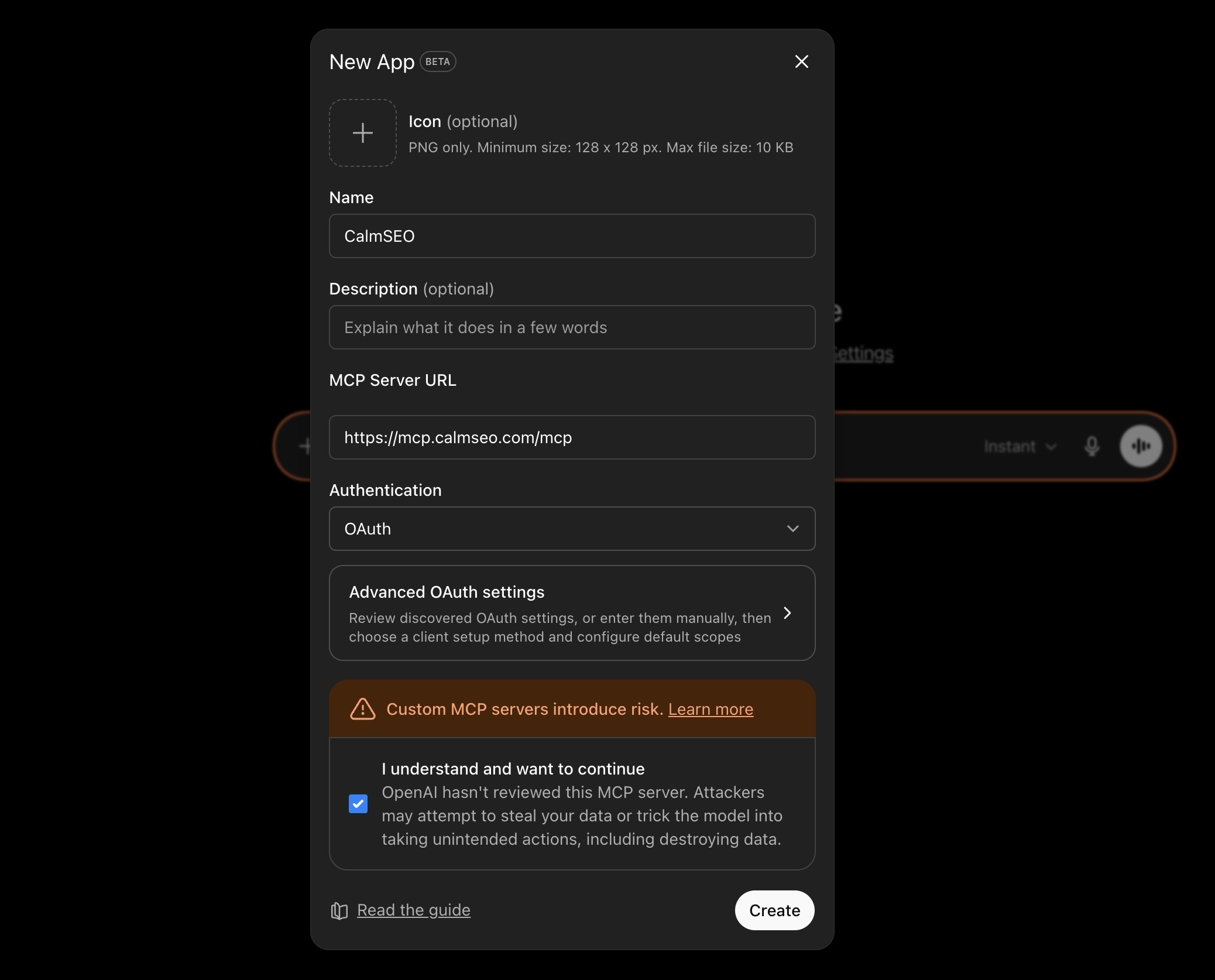
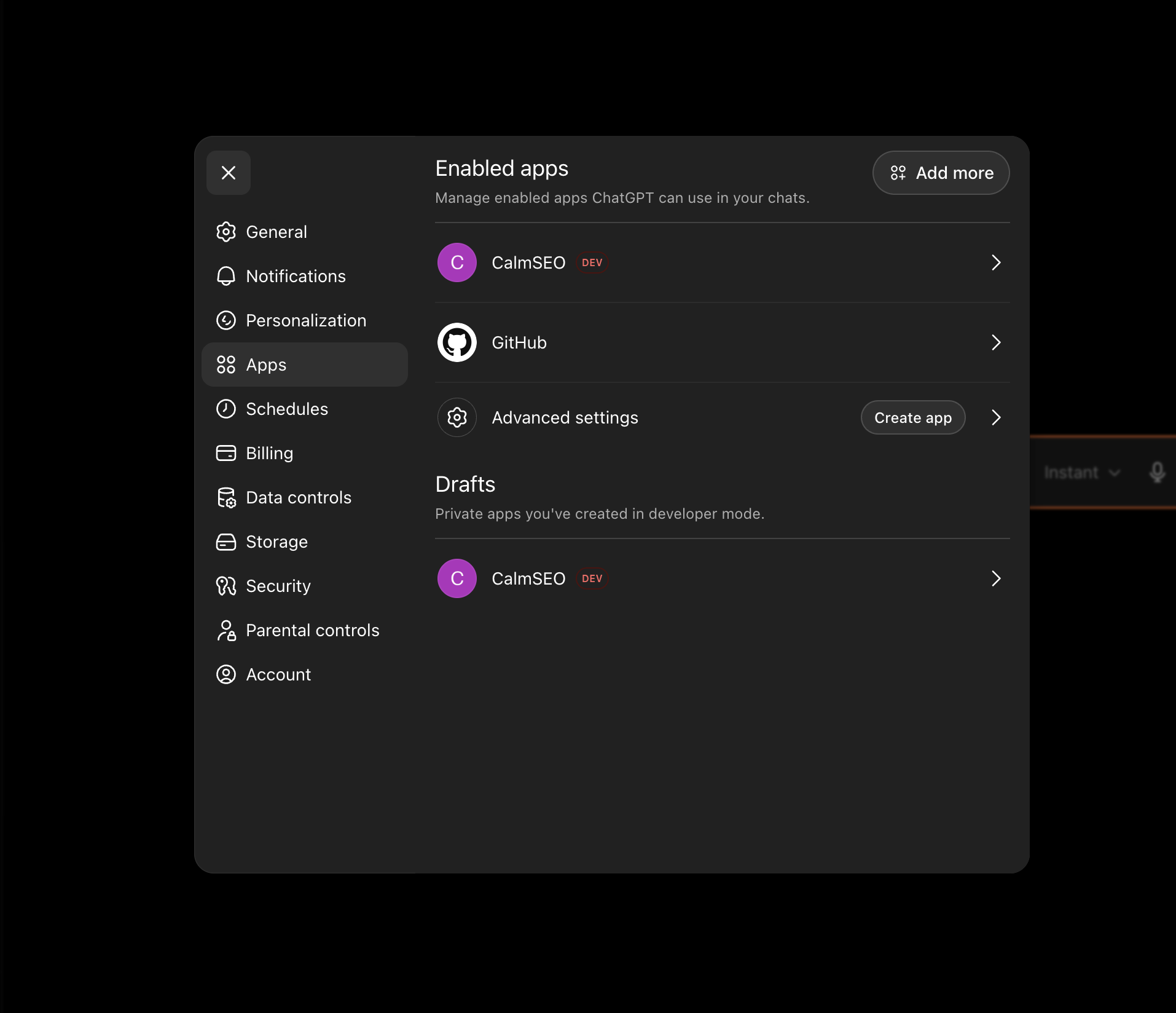
Do not create a Custom GPT for this. CalmSEO should be added through developer mode so ChatGPT can use the MCP tools directly. The ChatGPT setup docs cover the same steps in reference form.
Set up Codex
Complete steps 1 and 2 above so your CalmSEO account has Search Console connected, then run this in your terminal:
codex mcp add calmseo --url https://mcp.calmseo.com/mcpCodex prompts you to authenticate with CalmSEO via OAuth on first use. After that, the same Search Console tools are available while you work on your site's code, for example pulling low-CTR pages and editing their titles in the same session.
What to ask ChatGPT once connected
- Use CalmSEO to list my top queries by clicks over the last 28 days.
- Use CalmSEO to find pages with more than 1,000 impressions and CTR under 1%.
- Compare the last 28 days with the previous 28. Which pages lost the most clicks?
- List queries where my average position is between 8 and 20, sorted by impressions.
- What queries does /pricing rank for, and which ones are worth a dedicated page?
- Find queries I get impressions for but have no page targeting.
- Check my sitemaps. Are any missing, stale, or reporting errors?
- Suggest five pages to refresh this week and explain the reasoning with data.
If ChatGPT also has built-in browsing or connectors enabled, ask it explicitly to use the CalmSEO app for SEO data. If your Google account has several properties, name the one you mean in the prompt. More prompt ideas: finding SEO opportunities in Search Console.
What to do once connected
The connection gives ChatGPT read-only Search Console data with a two to three day lag. The same CalmSEO app also exposes paid keyword, SERP, ranked keyword, and page audit tools, so ChatGPT can check search volume or the live results for a query it finds in your data. For recurring checks on top of this data, see running a Search Console AI agent.
Troubleshooting
- The Developer mode toggle is missing. Your plan or workspace may not have access yet. See OpenAI's developer mode guide.
- ChatGPT doesn't use CalmSEO. Confirm you started a new chat, chose Developer mode from the + menu, and selected CalmSEO. Then ask it explicitly to use the CalmSEO app.
- My property isn't showing. CalmSEO reads the properties of the Google account you approved. Open the CalmSEO dashboard and check the Google Search Console card. If the wrong account is listed, click Disconnect, then Connect with Google again and pick the right one on Google's account chooser.
- Domain vs URL-prefix property. Both are supported, but they are separate properties with different data. Tell ChatGPT which one you mean, for example sc-domain:example.com.
- "No data" for recent dates. Search Console data arrives with a two to three day lag. Widen the date range.
- Revoking access. Click Disconnect in the CalmSEO dashboard to revoke the stored Google token. You can also remove CalmSEO from your Google account's third-party access settings.
Frequently asked.
What is a ChatGPT SEO MCP?+
Is this free?+
Is the connection read-only?+
Do I need a Custom GPT?+
Which Search Console tools does ChatGPT get?+
Can I connect more than one Search Console property?+
Is CalmSEO made by OpenAI?+
Connect Search Console to ChatGPT
20 free credits + free Google Search Console tools. No card required.