
Install CalmSEO in Claude
Add CalmSEO as a custom remote MCP connector in Claude web or Claude Desktop, authenticate once, then enable it per chat.
MCP endpoint
Use this URL when the client asks for the remote MCP server:
https://mcp.calmseo.com/mcpSetup
- Open Claude web or Claude Desktop and go to Customize > Connectors or Settings > Connectors.
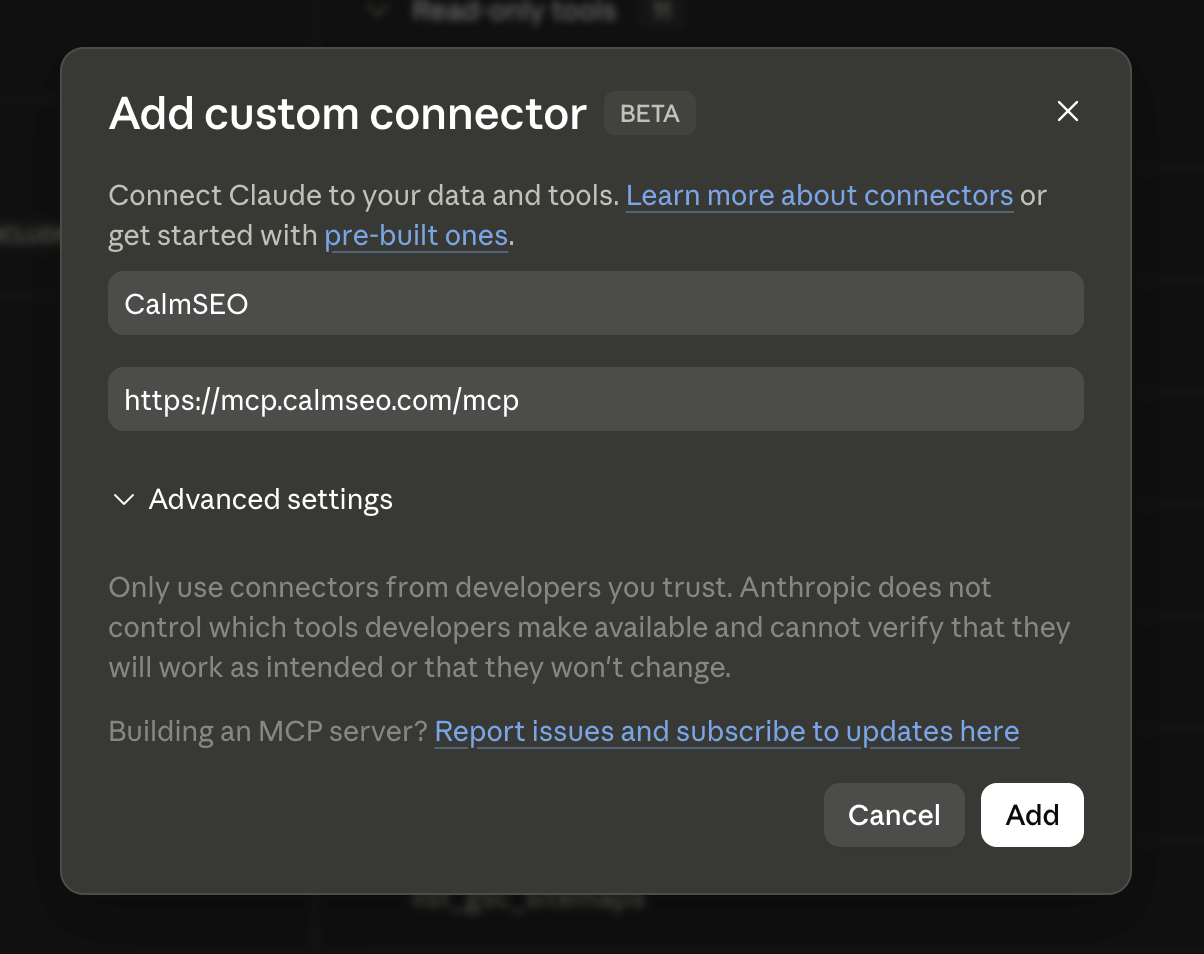
- Click +, then choose Add custom connector.
- Use CalmSEO as the connector name and https://mcp.calmseo.com/mcp as the remote MCP server URL.
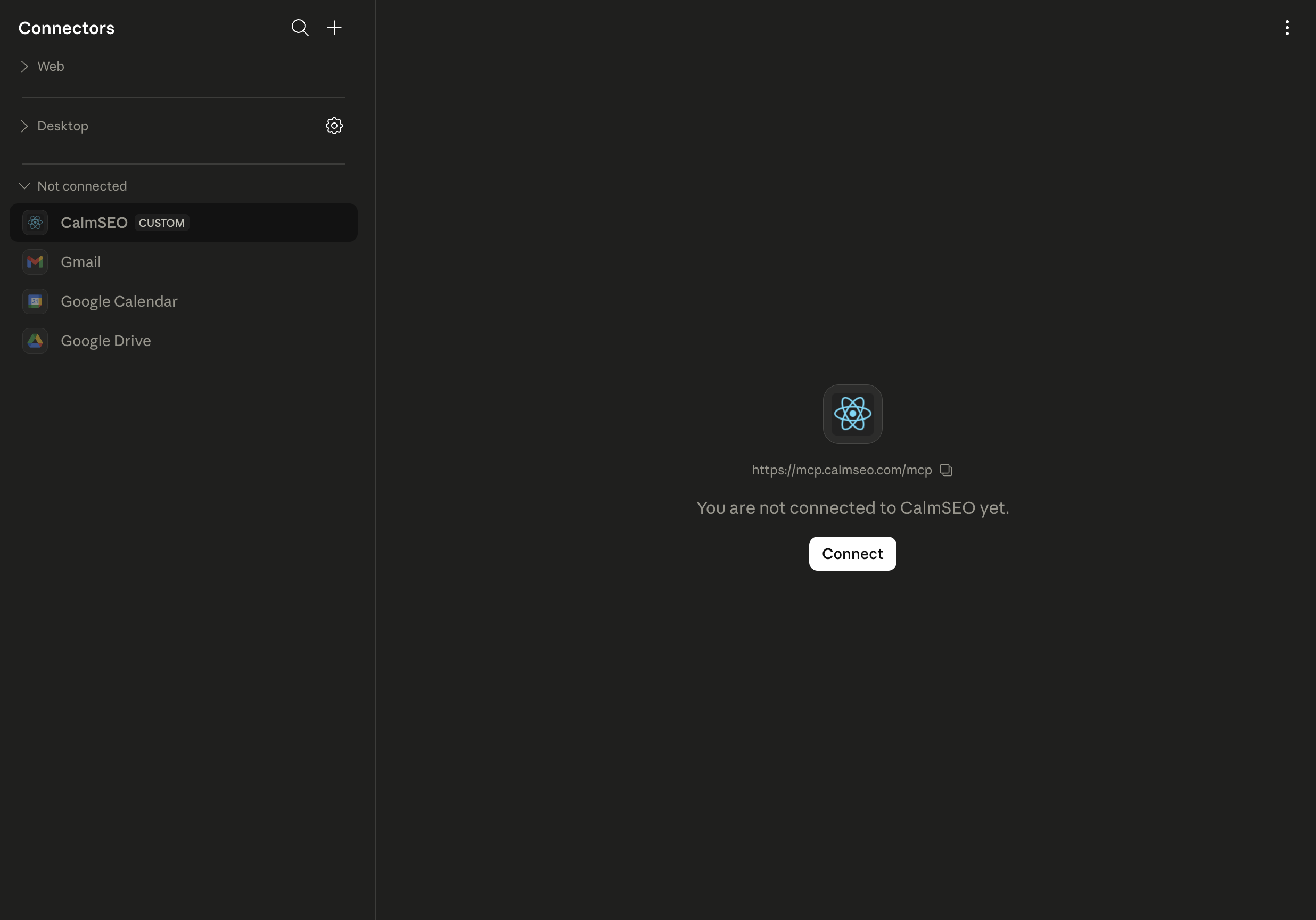
- Click Add, then Connect to complete the CalmSEO OAuth flow.
- Open a new chat, use the + menu, choose Connectors, and enable CalmSEO for that conversation.
Screenshots
Notes
- Claude web and Claude Desktop use the same remote connector UI for this setup.
- On Team or Enterprise plans, an owner may need to add the connector at the organization level before members can connect it.
- For remote MCP servers in Claude Desktop, use the Connectors settings screen. Do not put this hosted endpoint in claude_desktop_config.json.
Try it
First prompts to run in the client:
Use CalmSEO to get keyword ideas for "emergency plumber".Use CalmSEO to check the SERP for "dentist in Austin".Use CalmSEO Search Console data to find pages losing clicks.